Login Methods
How to sign in to Insight Cloud
Insight Cloud supports multiple login options so teams can choose the method that fits their security and workflow requirements.
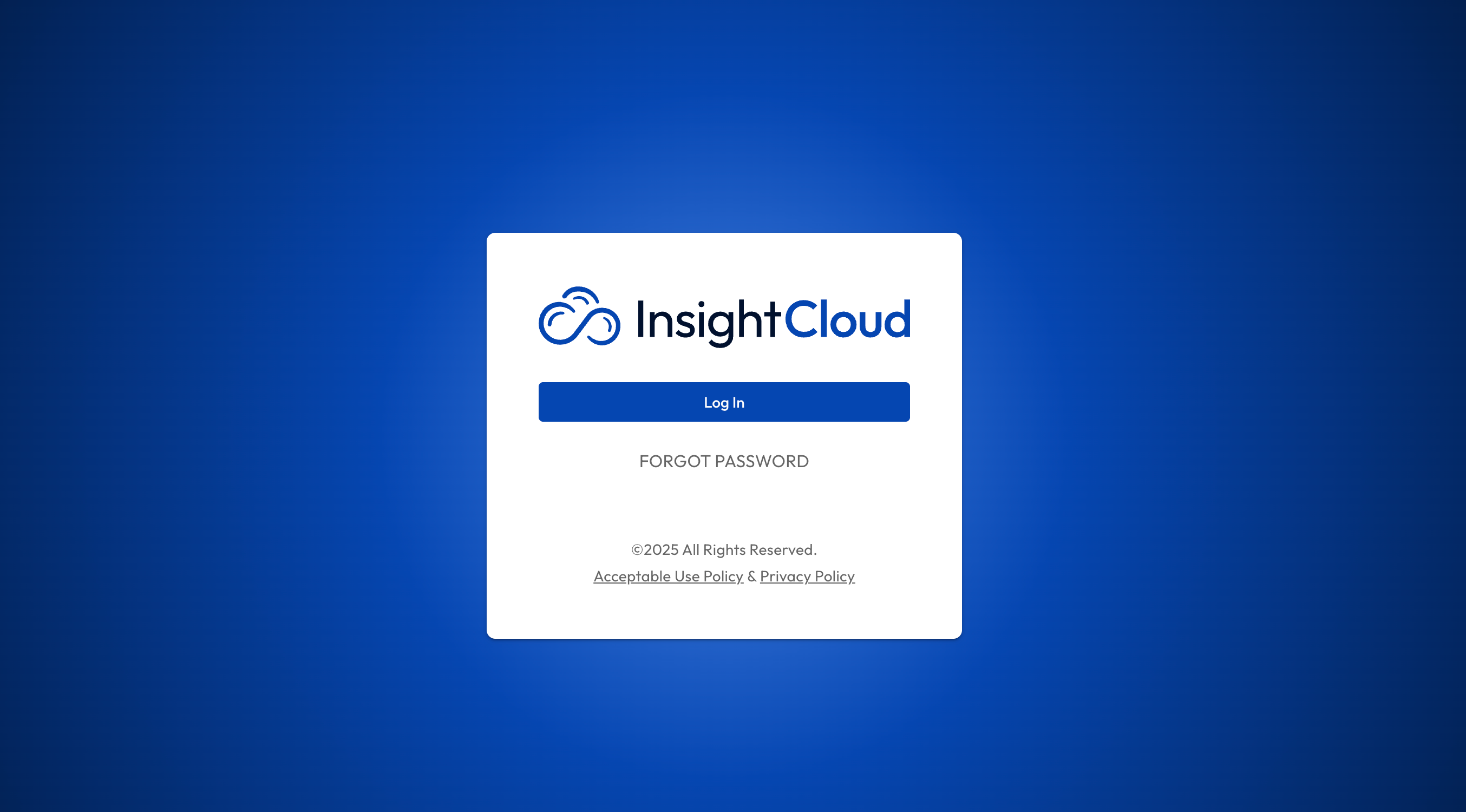
Overview
Insight Cloud supports email login and custom SSO depending on your organization’s setup.
Email Login
Once invited into your organization within Insight Cloud, a new user account must be activated before you can log in.
How to activate
Open the email generated from Insight Cloud.
Fill out the user profile information (name, job title, password)
Confirm your credentials.
Once sent to the login screen, log in with your new credentials.
How to login
When you want to return to insight cloud, navigate to
Click login and enter your email.
Continue and enter your password.
If prompted, approve Insight Cloud to log you in.
Single Sign-On (SSO)
Insight Cloud offers SSO integration with Azure Active Directory as well as SAML based authentication. Reach out to support@seekinsights.com if you want SSO configured for your organization.
How to log in with SSO
Once your SSO setup is complete, navigate to the login page.
Click login, enter your email and click continue.
Once complete, you will be logged in automatically.
FAQ
How do I reset my password?
How do I reset my password?
On the login screen, click the forgot password option to receive assistance on resetting your password and logging in.
Can I change the email associated with my account?
Can I change the email associated with my account?
Yes! In your profile’s settings in Insight Cloud, navigate to the General page. Here you can update your email address. NOTE, this will force you to log out and log back in with the new email account.
Was this helpful?
Still need help? Share an idea