App Variants
Variant dropdown and App Settings cards, Run Cadence options, the FAILED chip, preferred vs. organization default, and that Delete Variant is final.
A Variant is a saved configuration of an app that keeps the same dashboards, metrics, and data model but uses different parameter values. Variants let you look at one app through different cuts, such as by market, brand, region, product line, or time window, without switching apps. One app, multiple lenses.
You may also see a Variant called an app configuration, a scenario, or a saved configuration. Customers often ask about it as "how do I run the app for a different brand or market," "how do I change the app's parameters," or "how do I set a default variant."
Applies to: Insight Cloud apps. The publisher decides which parameters an app lets you change.
You'll need: Access to the app. Every user with access to an app can view, edit, run, and delete that app's Variants. Setting the organization default Variant needs an Admin. The Viewer role cannot set a preferred Variant or an organization default.
Last reviewed: 2026-10-23
Where to find Variants
To switch between Variants, open the app from My Apps and use the Variant dropdown under the title card.
To create or manage Variants, open the app from My Apps, then click Settings in the top right of the app. The App Settings screen opens with a card for each Variant. This is the app's Settings button, not Organization Settings or User Settings.
What you can do with Variants
Switch an app between its Variants with the Variant dropdown.
Create a new Variant with its own name and parameter values.
Edit a Variant's parameters and schedule.
Run a Variant's analysis on demand, or cancel a run in progress.
Mark one Variant as your preferred Variant, so it opens by default when you go to the app (not available to the Viewer role).
Set one Variant as the organization default (Admins only).
Multiple saved views for each Variant.
Delete a Variant.
How Variants work
Each Variant has four things you control:
A name, descriptive enough to tell Variants apart at a glance.
A set of parameters: values you fill in for fields the publisher made configurable.
A Run Cadence: how often the Variant runs an analysis.
Saved views: pre-saved filters and controls within the dashboard, saved per Variant. A saved view can be set as the default view for that Variant.
The publisher decides which parameters you can adjust. You decide the values, the name, and the schedule.
When a Variant runs, the app's modeling logic runs on the app's source data using that Variant's parameter values. Each Variant produces its own output, and the dashboard shows the output of that Variant's most recent run. A run is not instant: it can take some time before results appear.
Example
An app has four Variants. Two use a 30-day lookback period and two use a 90-day lookback period. One 30-day and 90-day pair covers the "bottled beverages" category, and the other pair covers "snacks":
Bottled Beverages 30 Days
Bottled Beverages 90 Days
Snacks 30 Days
Snacks 90 Days
Because each Variant already has its own results, you can flip between them with the Variant dropdown to compare short-term and long-term views of the same category, or compare the two categories.
Create a Variant
If no existing Variant has the parameters you want, create one:
Open the app from My Apps.
Click Settings in the top right. The App Settings screen opens, with a card for each existing Variant.
Click Create a new Variant. The New Variant card appears.
Enter a Variant Name and fill in the parameter fields. The name should describe what makes this Variant distinct.
Set any parameter values defined by the variants. Variants must be distinct sets of parameters (no duplicates).
Set the Run Cadence dropdown on the New Variant card. See Schedule a Variant.
Click Create.
A new Variant runs automatically when you create it, so you have data to look at as soon as the run finishes. See How to tell a run finished below.
Manage a Variant
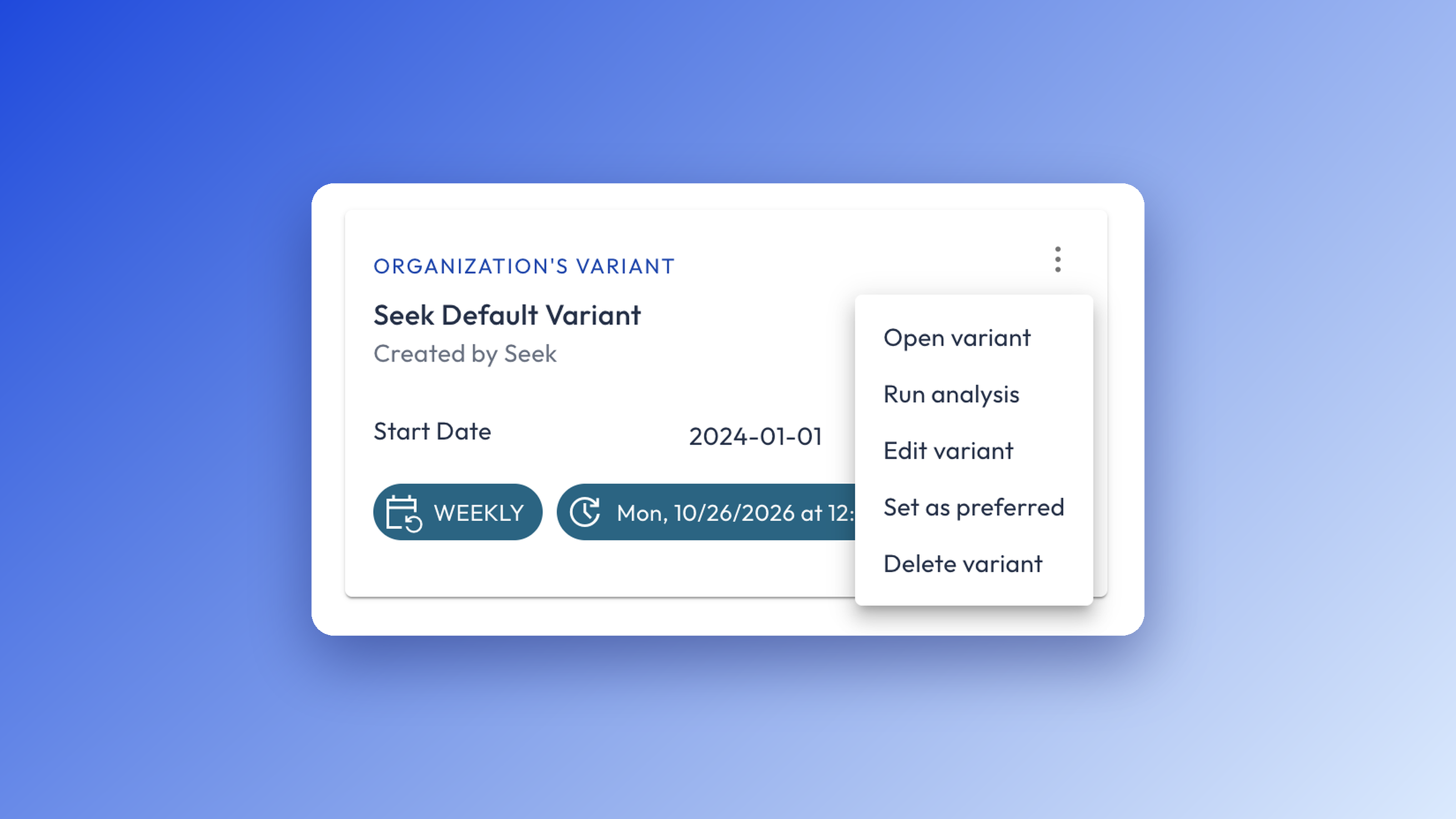
From App Settings, click the more options menu (⋮) on a Variant card to:
Open Variant: go to the app with this Variant selected.
Run analysis: trigger a run. It becomes Cancel run analysis while a run is in progress.
Edit Variant: change the Variant's parameters and schedule.
Set as preferred: make this the Variant that opens by default when you go to the app.
Delete Variant: remove the Variant from the app.
An edited Variant does not rerun automatically. Use Run analysis to refresh it with the new parameter values.
Deleting a Variant is final. Delete Variant removes that Variant's output data from the system and also removes every saved view that belongs to it. A deleted Variant cannot be recovered.
Schedule a Variant
When you create or edit a Variant, set its Run Cadence. Run Cadence is a dropdown that appears on every Variant card. Choose daily, weekly, monthly, or yearly, and the scheduler settings for that cadence appear. Choose Never for a Variant that should only run when someone clicks Run analysis.
Seek sets up the schedule for your app so it runs as soon as the publisher has updated the source data. If a Variant has no schedule, you can edit the Variant and set one, or create a new Variant with one.
You only need to Run analysis in two cases: the Variant has no schedule and you want new output, or you changed a Variant's parameters and want to see the results as soon as they are ready instead of at the next scheduled run.
How to tell a run finished
A successful run is silent. No message appears when it completes. To confirm a run finished, check that the Analysis as of date in the app header has updated. See Data Freshness.
If a run fails, a FAILED chip appears on the Variant card in App Settings. See If Variants isn't working. You will not see the Analysis as of update when a run fails. It will stay reflecting the date of the last successful run.
Preferred Variant and organization default
Your preferred Variant is your personal default: the Variant that opens for you when you go to the app. Set it from a Variant card's more options menu (⋮) with Set as preferred.
The organization default applies to everyone in your organization. An Admin sets it from a Variant card's more options menu (⋮) on the App Settings screen. The card of the current organization default Variant displays text saying it is the default.
If an Admin has set an organization default and you set a preferred Variant, your preferred Variant opens for you instead. The Viewer role has neither control.
Variant saved views
Saved views are saved per Variant. A saved view belongs to one Variant and does not appear in the app's other Variants. Every user with access to the app can see every saved view for a Variant. See Shared Views.
Limits and what Variants can't do
An app can have up to 10 Variants. The limit is per app.
Variants do not exist apart from their app. You cannot create a Variant outside an app.
A Variant run is not instant. It runs data science / modeling logic on the app's source data, so results can take some time.
Variants do not let you change which parameters exist. The publisher decides which fields are configurable. You change only the values.
Variants are not private. Every user with access to an app can view, edit, run, and delete all of that app's Variants, including ones created by someone else.
Deleting a Variant cannot be undone. Its output data and saved views are removed.
Running Variants does not count against a run limit.
The Viewer role cannot set a preferred Variant or an organization default.
Variants vs. saved views, apps, and defaults
A Variant changes the app's parameters and runs the analysis again. A saved view only changes filters and layout on top of the output a Variant already has, and does not run anything. See Shared Views.
A Variant is not a separate app. It is a different configuration of the same app, with the same dashboards and data model. See App Basics.
Three different things are called a "default." Your preferred Variant is your personal choice. The organization default Variant is set by an Admin for everyone. The default view is a saved view that opens first for everyone viewing that Variant. Setting a saved view as the default view applies to everyone on the Variant, even though the Set as your default view label says "your."
If Variants isn't working
A Variant shows a FAILED chip. The Variant's run failed. Use Get Support in the Insight Cloud profile menu so Seek can look into the failure and help resolve it. Seek monitors failed runs, so a failure is unlikely, but report any you find.
My Variant's results haven't changed after I edited it. Editing a Variant does not necessarily rerun it. Open the more options menu (⋮) on its card and click Run analysis.
The card still shows the old value while the run is in progress. The card display lags during a run, and your new value was used. It updates when the run completes.
Related articles
App Basics — what an app is and how a Variant differs from an app
Shared Views — save and manage saved views, which are shared per Variant
Explore Mode — customize an app's visuals and save the result as a view
Data Freshness — read Analysis as of and Next Scheduled Analysis to see when a Variant last ran and runs next
Was this helpful?
Still need help? Share an idea