App Store Basics
Where App Store sits in the left navigation, what search covers, its seven filters, the eight details-page sections, and how to request an app today.
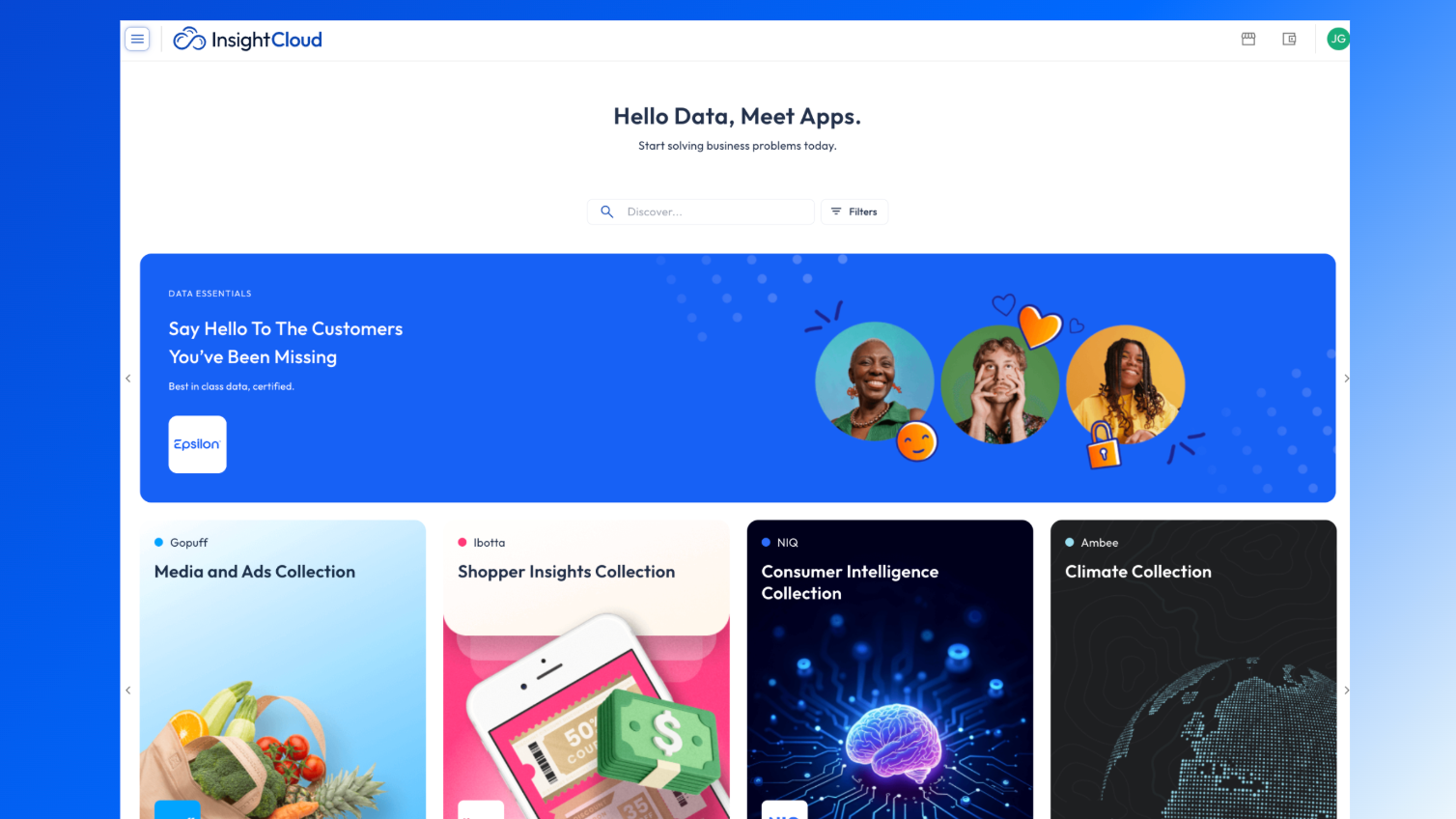
The App Store is a page in Insight Cloud where you discover apps and find out how to get access to them. You can browse apps, search and filter them, and open an app's details page to see what problem it solves, which publisher data it uses, and who publishes it. Today, getting an app means contacting Seek. Self-service subscribing and access requests are not available in the App Store yet.
You may also see the App Store referred to as the app marketplace. Customers often ask about it as "where do I find new apps," "where can I see what apps are available," or "how do I get an app I see here."
Applies to: The Insight Cloud App Store
You'll need: Nothing to view it. All Insight Cloud users can see the App Store, and so can non-platform users (people without an Insight Cloud account). The actions available on an app's details page depend on your role.
Last reviewed: 2026-10-28
Where to find the App Store
In the left navigation, App Store is the last item, above your account avatar and notification bell.
What's on the App Store
Landing page — apps grouped into sections. The layout is the same for every user and changes over time, so the sections you see today may not match older screenshots or descriptions.
Search bar — at the top of the page. See "What App Store search covers" below.
Filters — narrow the apps shown. See "Filters in the App Store" below.
App card — click an app's card to open its details page.
What App Store search covers
App Store search looks across app names, app descriptions, publisher names, app listing tag lines, and app listing tags.
Filters in the App Store
You can filter the App Store by:
Monthly / Annual Subscription Price
Publisher Name
Use Cases
Sectors
Regions
Topics
Data Types
Most of these are the same tags you can filter by in My Apps. Monthly / Annual Subscription Price, Publisher Name, and Regions are the filters specific to the App Store.
What's on an app details page
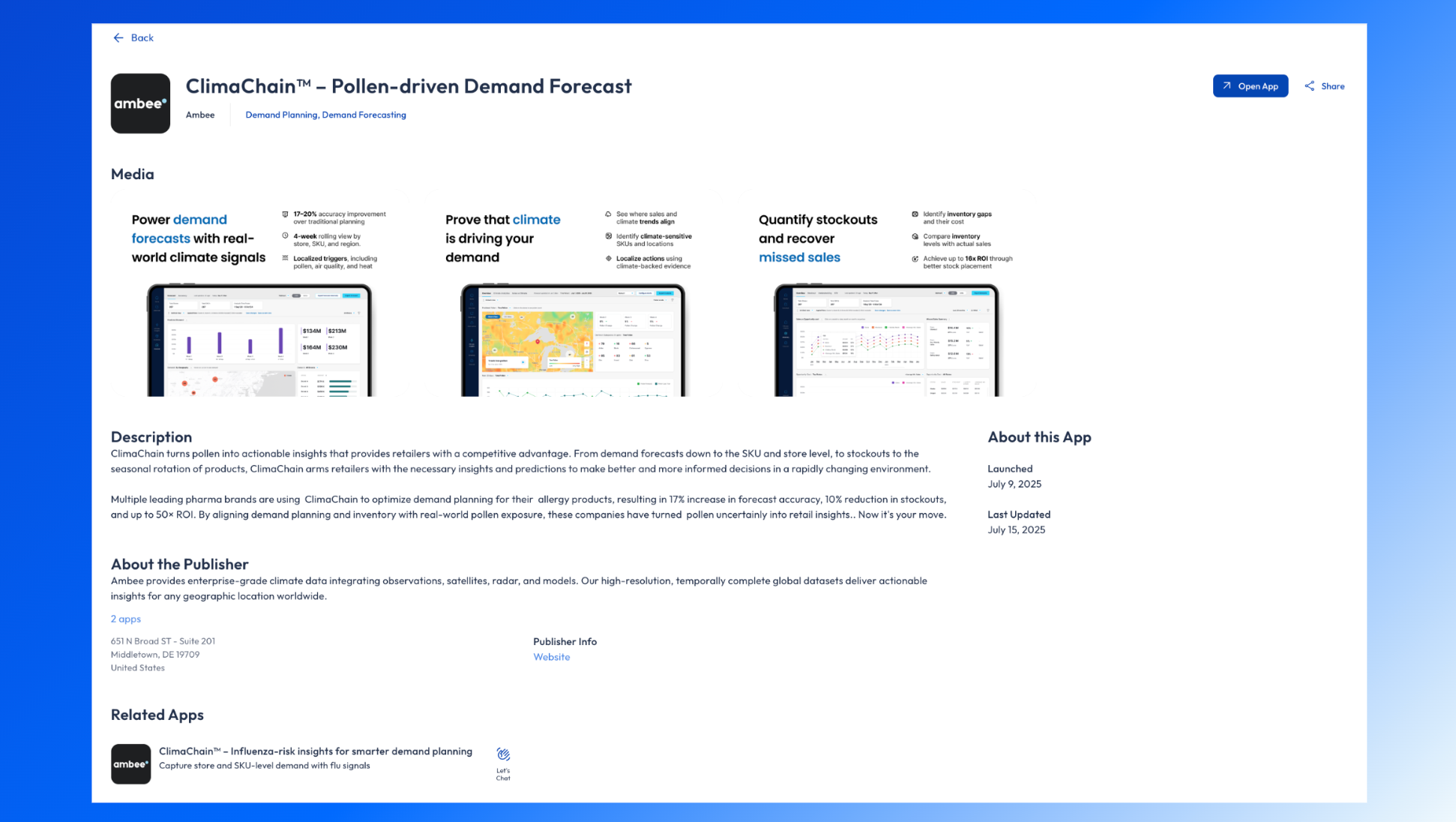
Click an app's card to open its details page. The page has these sections, from top to bottom:
How to get an app you find in the App Store
The App Store exists so you can find apps and ask for access to them. Today there are two ways to ask for access:
Contact Seek. Any user can reach out to Seek, including its sales team, to ask for an app. This is how you get an app today.
Self-service. A self-service way to subscribe or request access from the App Store is planned but is not available today.
Limits and what the App Store can't do
The App Store does not offer self-service subscribing, purchasing, or access requests today. To get an app, contact Seek.
The App Store does not sell data on its own. Each app applies modeling logic to source data to analyze it and surface the key problems the data highlights.
The App Store does not let non-platform users request that their organization subscribe to an app, or request access to an app their organization already subscribes to.
The App Store's sections are not a fixed list. The layout changes over time and is the same for all users.
Opening an app's details page does not give you access to the app. Access is controlled separately by your organization.
The App Store vs. My Apps
The App Store is where you discover apps. My Apps is where you open the apps you already have access to. If you can't find an app you expect to have, see My Apps.
The App Store vs. publisher storefronts
A publisher's storefront is a separate part of the App Store from the main App Store landing page. You can reach a publisher's storefront from About the Publisher on an app's details page.
Related articles
My Apps — open the apps you already have access to, and what to do when one is missing
App Basics — what an app is, what it contains, and who can open one
Subscriptions — what a subscription is, billing frequencies, and how subscriptions relate to access
Wallet — how an organization's Wallet balance pays for app subscriptions
Was this helpful?
Still need help? Share an idea