My Apps
See all your apps in one view
Overview
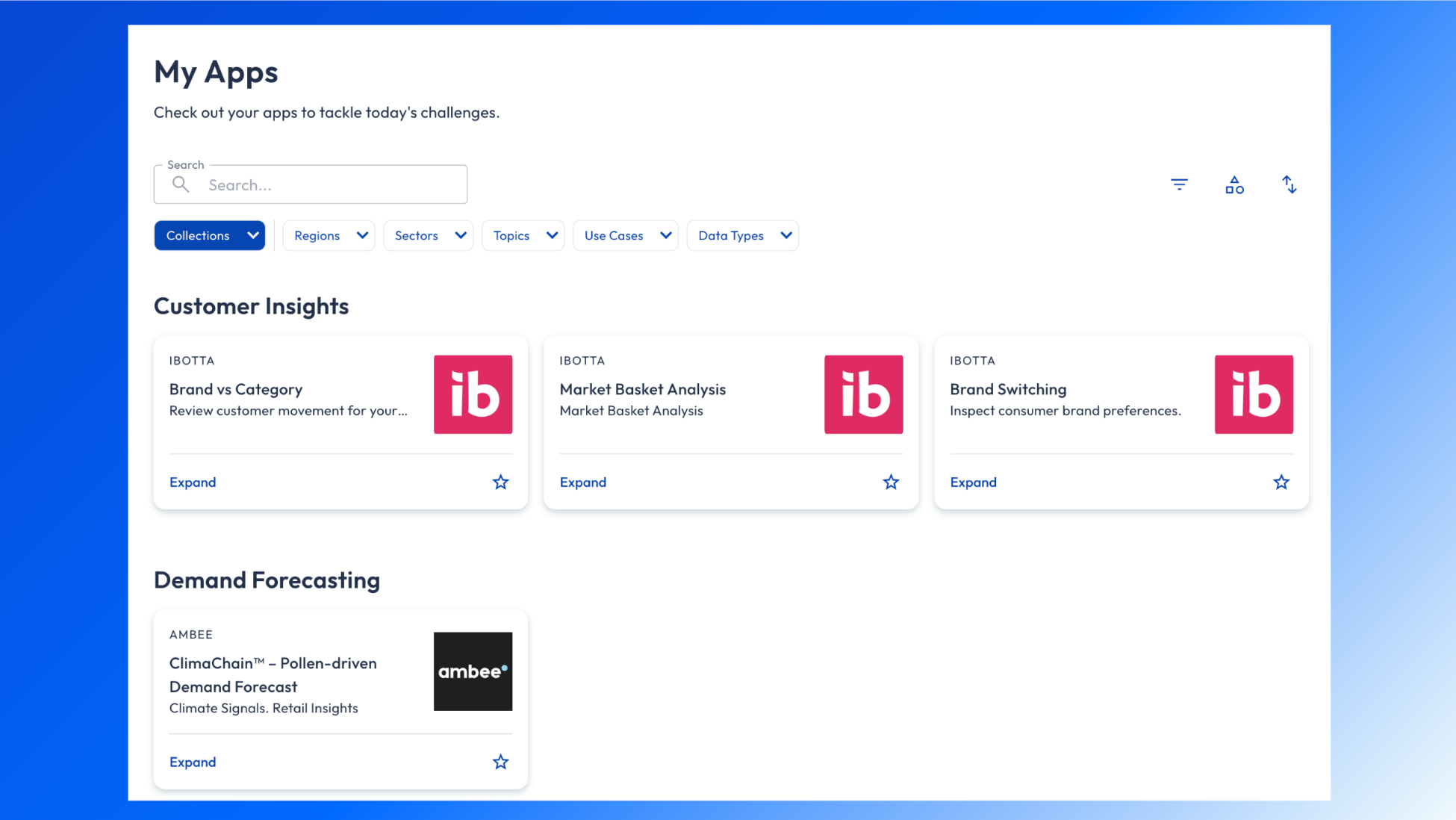
The My Apps page allows you to view any apps you have access to. It’s flexible, allowing you to adjust which apps appear first, easily access the apps you use most frequently, and access the information you need as quickly as possible.
💡 Note: By default, apps on the My Apps screen are grouped by use case and sorted alphabetically.
How My Apps works
1. Search & find apps
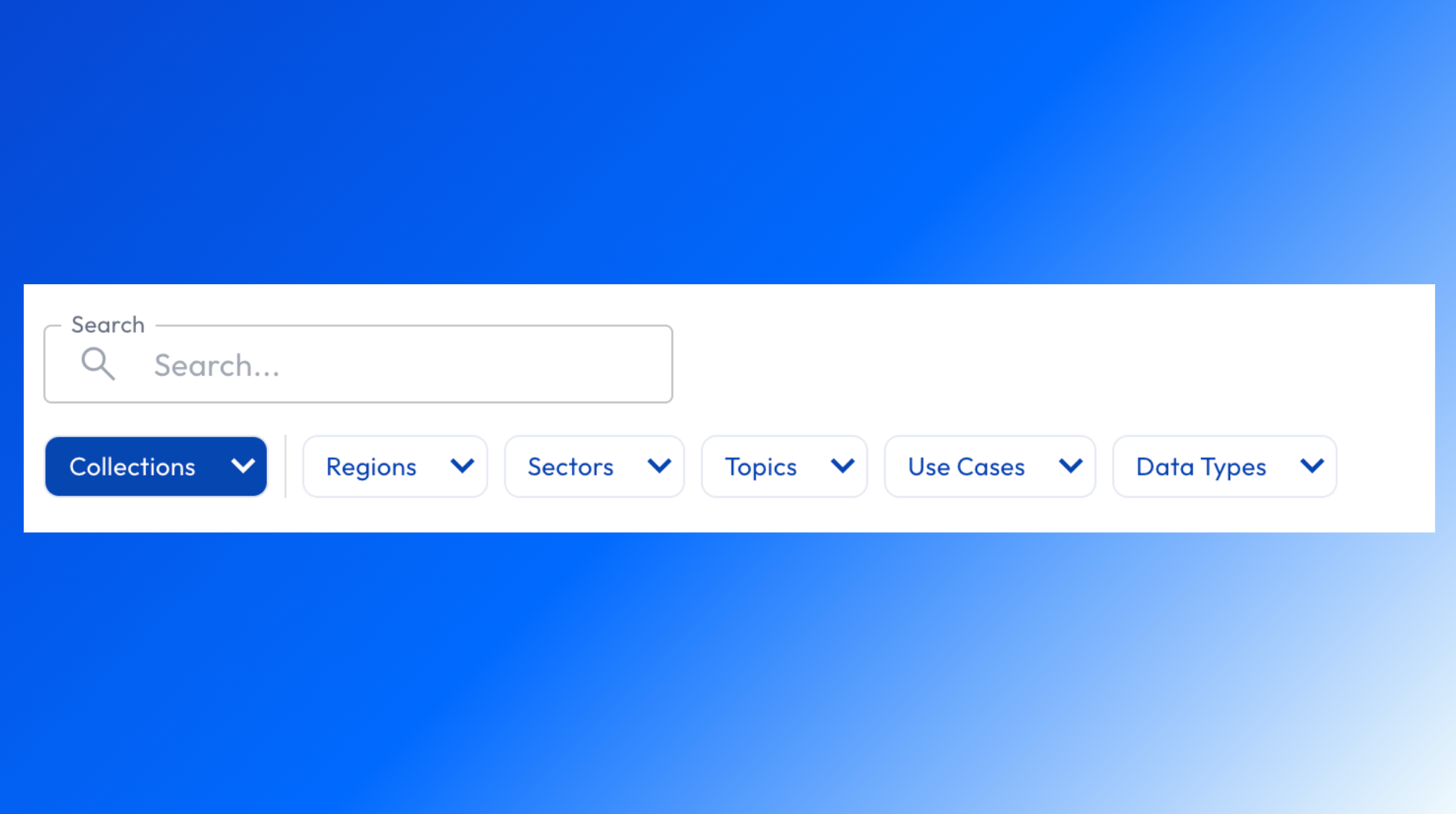
Use the search bar at the top to locate an app by name or keyword. This is particularly useful when your workspace subscribes to many apps.
2. Open an app
Click an app tile or row to launch it.
Once open, the app displays dashboards, filters, and insights relevant to its focus.
3. Favorite apps for quick access
You can favorite apps you use most often to make them easier to find.
To favorite an app, click into the star ⭐ on the App.
Favoriting an app does not change access or permissions—it only affects how apps are organized for you.
My Apps Navigation
The following table describes the fields available on the My Apps screen:
Field Name | Description |
Search | Search for the particular app you want to access. You can search by app name, description, or metadata. Note: Only apps to which you have been given access appear in search results. |
Collections | Search for a particular group of apps, organized by theme (e.g., Marketing, Media & Adds, or Sales & Performance). |
Sectors | Search for a particular group of apps, organized by sector (e.g., Retail). |
Topics | Search for a particular group of apps based on broad categories (e.g., Logistics or Marketing). |
Use Cases | Search for a particular group of apps based on use cases (e.g., Supply Chain Optimization). |
Data Types | Search for a particular group of apps based data types (e.g., Point of Sale). |
Filters  | Filter for apps based the following
|
Group by  | Organize the grouping of your apps by Data Providers, Publishers, Sectors, Topics, or Use Cases. |
Sort by  | Organize your apps are organized in one of the following ways:
|
Expand | Enarge the card to reveal a brief description of that app’s purpose. |
Add to Favorites  | Display the selected app appears on the menu pane on the left of the Insight Cloud homepage, providing easy access in the future. |
💡 Note: If no apps to which you have been granted access contain particular data categories (e.g., Use Cases), corresponding fields do not appear on the My Apps screen.