Organization Settings overview
Opening Organization Settings from the organization logo, the four required permissions, the General and Customization sections, and the billing limit.
Organization Settings is the set of organization-level pages in Insight Cloud where admins manage their organization. It is reached through Organization Settings, the home for all administrative tasks for the organization. Today it covers managing users, teams, roles, and apps, and customizing your organization's Home page. New pages will be added over time.
You may also see Organization Settings referred to as org administration, org admin, org management, admin settings, the admin panel, or workspace settings. Admins often ask about it as "where do I add a user," "where are the admin settings," or "who can manage my organization."
Applies to: Insight Cloud organizations
You'll need: The Manage Organization, View User, View Team, and View Role permissions together, or the Admin system role (also called Org Admin), which includes them.
Last reviewed: 2026-11-04
Where to find Organization Settings
Click your organization's logo in the navigation pane. This opens Organization Settings. There is no button labeled "Organization Settings"; the organization logo is the only way in.
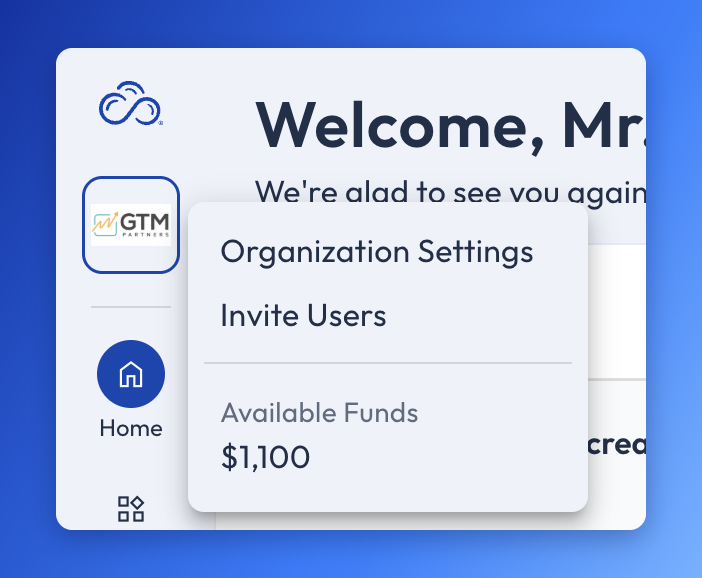
If you don't see the organization logo menu, or you don't see the page you want inside Organization Settings, you don't have the permissions that page requires.
What you can do in Organization Settings
Invite, edit, deactivate, and delete users on the Users page.
Create teams, set a team's default role, give teams access to apps, and assign apps to many teams at once on the Teams page.
Create custom roles and see what each role allows on the Roles page.
Review the apps connected to your workspace and remove access to an app on the Apps page.
Set what appears on your organization's Home page under Customization: Homepage Widgets, Homepage Heading, Events, and Collections.
What's in Organization Settings
Organization Settings is organized into sections. Each of which is dynamic and gets new pages over time. Today the sections are General and Customization.
Users — invite and manage everyone with access to your organization. See Users.
Teams — group users so apps and an optional default role reach many people at once. See Teams.
Roles — define what users can see and do. Roles are reusable permission sets that apply to users and teams. See Roles and Permissions.
Apps — a workspace-level view of every app connected to your workspace, for governance and visibility rather than discovery. See Apps.
Customization — the settings that shape your organization's Home page. See Home.
Who can use Organization Settings
Organization Settings requires all four of these permissions together: Manage Organization, View User, View Team, and View Role. The Admin system role, also called Org Admin, includes them.
Some pages ask for fewer. According to their own articles:
These permissions open the pages. They do not on their own give full independent management of the organization; that takes full organization management capability, which the Admin role has. Admin is the name of the role, and Org Admin means the same thing.
Limits and what Organization Settings can't do
Org Settings does not yet give full access to billing and invoicing.
Org Settings permissions do not give someone full independent management of the organization unless they also have full organization management capability.
The Admin role does not give app access by default. An Admin can grant themselves access to apps if they need it.
Org Settings does not manage your own account. Your name, picture, email, and password are in Personal Settings.
Org Settings pages are only available to users with the required permissions. A user without them does not see the page, whatever other roles they hold.
Organization Settings vs. Personal Settings
Organization Settings is for managing the organization and everyone in it. Personal Settings is where you manage only your own account. In the product it is labeled General under User Settings, which is separate from the General section of Organization Settings. Changes in Personal Settings affect only you. See Personal Settings.
Organization Settings > Apps vs. My Apps and the App Store
The Apps page in Organization Settings is for admins to review the full set of apps connected to the workspace. My Apps lists the apps a user can open. The App Store is where apps are discovered and subscribed to. See Apps, My Apps, and App Basics.
Admin vs. Seek Admin
Admin, also called Org Admin, is a role in your organization and is what this article means by an admin. Seek Admin is a separate, internal Seek role and is not part of your organization's Administration.
If Organization Settings isn't working
If you can't see the organization logo menu, or a page inside Organization Settings is missing, you probably lack one of the permissions that page requires. Ask your organization's Admin to check your permissions. If that doesn't resolve it, or anything else in Administration isn't working, use Get Support.
Related articles
Users — invite users, assign roles and teams, and deactivate or delete users
Teams — group users, set a team default role, and give app access to many users at once
Roles and Permissions — what each system role allows, how roles add up, and how to create custom roles
Apps — review the apps connected to your workspace and remove access
Home — the Home widgets, heading, events, and Collections that Customization controls
Personal Settings — change your own picture, name, email, or password
Concepts — foundational ideas behind Insight Cloud and the terms used across the platform
Start Guide — first-day walkthrough of Insight Cloud, including which areas admins see
Was this helpful?
Still need help? Share an idea