Intelligence
Get answers, analysis, and guidance across every app in your workspace.
Overview
Intelligence is Insight Cloud's AI feature. It works across your apps to deliver answers, analysis, and guidance, so you can move faster without switching tools or searching documentation.
Intelligence has two capabilities:
Agent-driven analysis — surfaces insights across your apps, explains what you're seeing, and recommends next steps.
Platform guidance — answers questions about features, finds the right app for a goal, and walks you through workflows.
What Intelligence does
Analyzes across your apps. Connects signals from multiple apps to surface insights no single dashboard can show.
Explains what you're looking at. Breaks down charts, defines metrics, and compares segments using the same semantic layer your apps rely on.
Identifies drivers and anomalies. Points to what changed, where, and why.
Asks before it guesses. When a question could be read more than one way, Intelligence pauses and asks you a short clarifying question instead of answering the wrong one.
Recommends next steps. Suggests actions based on your role, the app you're in, and what the data shows.
Helps you navigate Insight Cloud. Answers product questions, recommends apps for your goals, and guides you through unfamiliar workflows.
How to use Intelligence
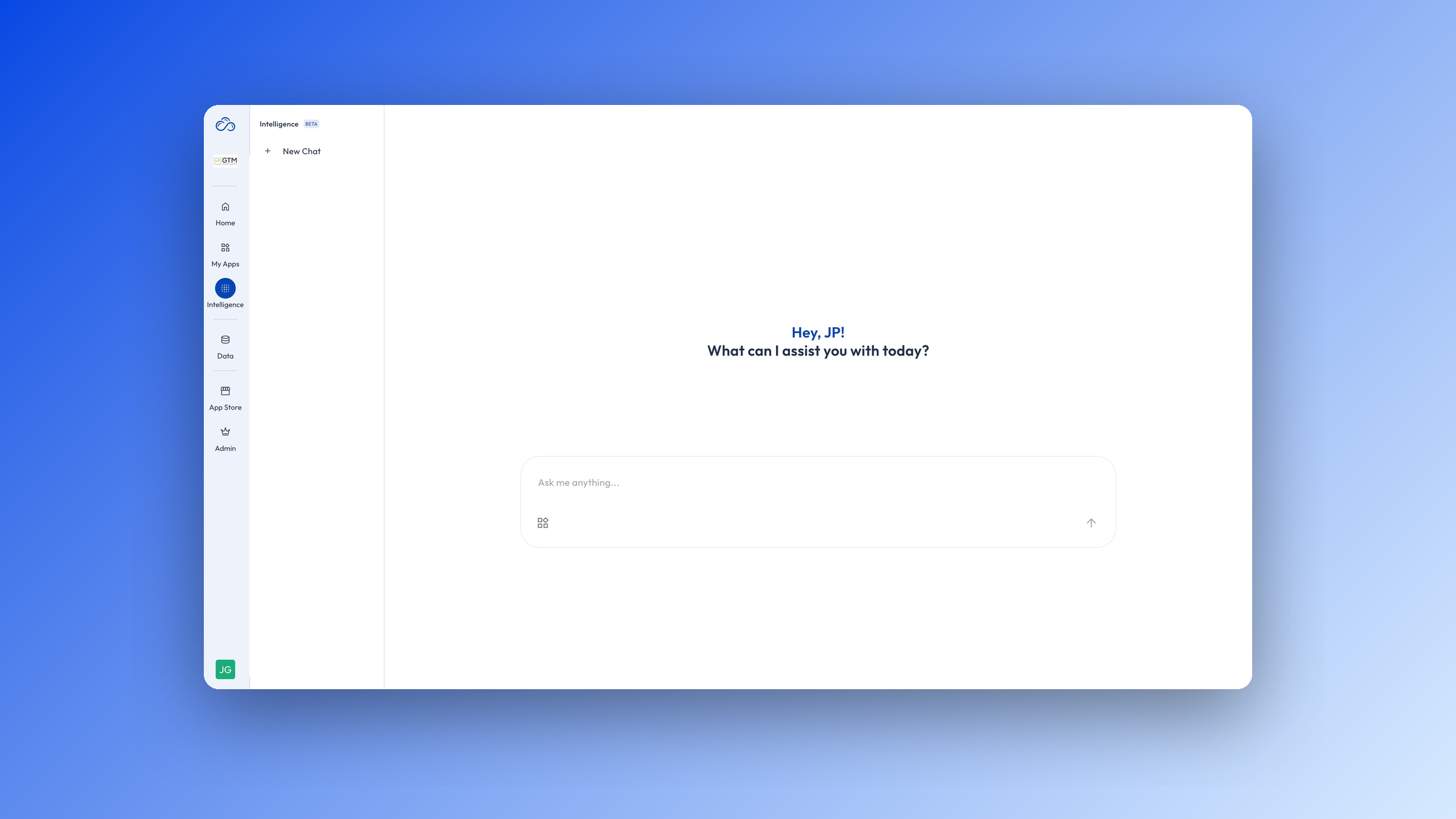
Open Intelligence from the sidebar.
Type a question or describe what you're trying to do.
Answer any clarifying questions either with multiple choice answers or open eded responses.
Review the response — analysis, charts, or recommendations appear inline.
Ask follow-ups to refine or go deeper.
Clarifying questions
Some questions can be read more than one way. "Show me the top performers" could mean top by revenue, by growth, or by deal count — and each one produces a different answer. Rather than picking for you and returning something you didn't ask for, Intelligence pauses and asks.
How it works
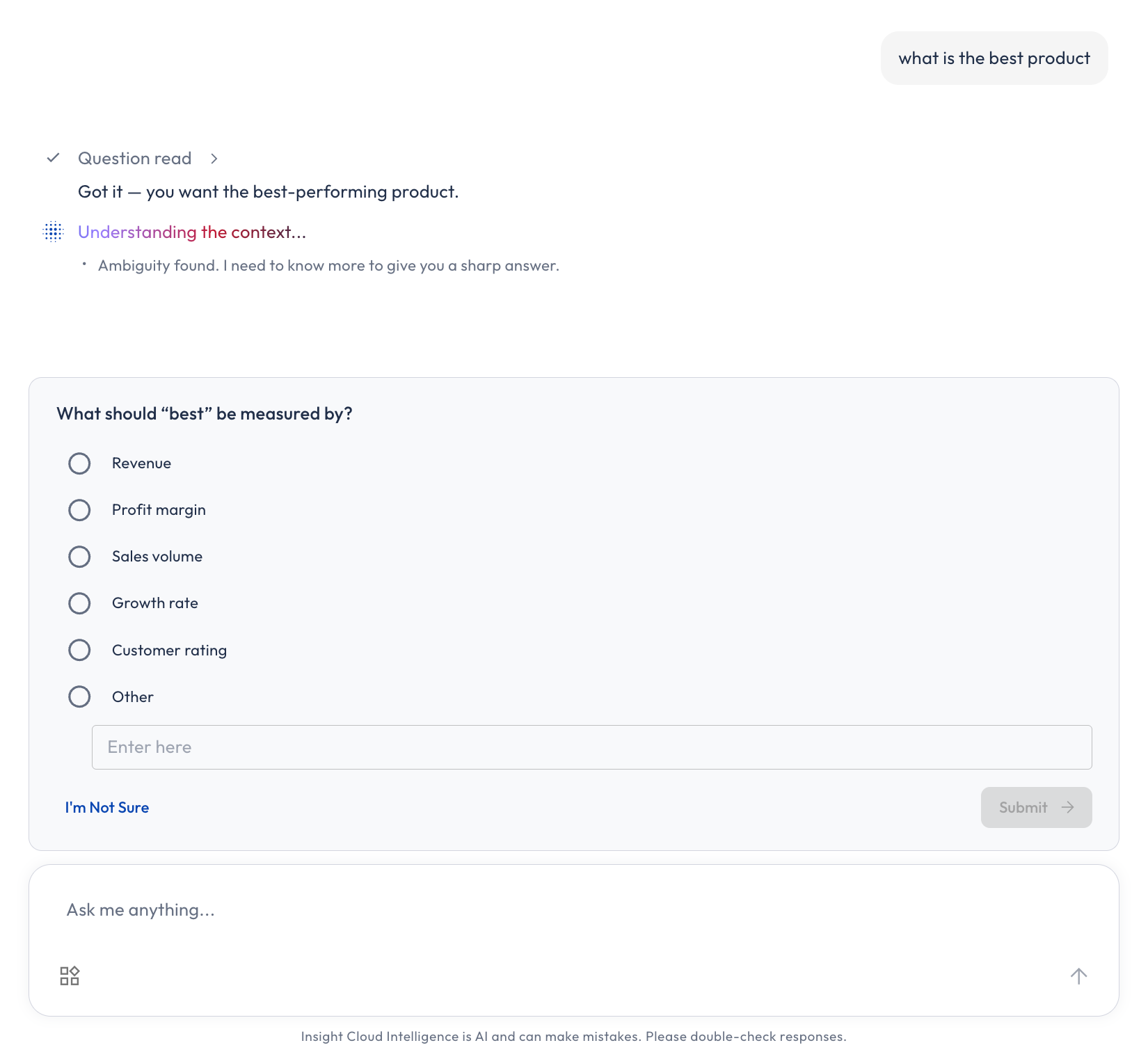
Intelligence spots the ambiguity. While it's pulling in the context for your question, the thinking steps show a note — "Ambiguity found. I need to know more to give you a sharp answer."
A clarifying question appears. A card opens just above the prompt input, below the in-progress thinking steps.
You answer. Pick an option, type your own, or skip the question.
The same analysis continues. The card closes, your answers are folded into the "Context understood" step so you can see exactly what was captured, and Intelligence keeps working on the question you originally asked.
This is one continuous run, not a restart. You don't need to retype your question, and you don't lose the work already done.
What's on the card
The question — specific to your ask, for example "Affinity scores vary widely by region. Which market should we focus on?"
Answer options — radio buttons when you should pick one, checkboxes when you can pick several.
Other — a free-text field for an answer that isn't listed. Typing in it selects it.
I'm Not Sure — skips the question without blocking you. Intelligence proceeds on its best interpretation.
Next — submits your answer. It stays disabled until you've actually answered: an option selected, or Other filled in with text.
A page indicator — if there's more than one question, you'll see "1 of 2" with prev/next arrows. You can move back and forth and change an answer before you submit; answers are sent when you click Next on the final question.
What to expect
It won't ask every time. Intelligence clarifies sparingly — only when a question genuinely has two or more readings that would lead to materially different answers, and it can't tell which one you mean from your message or the conversation so far. A reasonable assumption beats an unnecessary interruption.
It asks before doing the heavy lifting. The check happens early, while context is being assembled, so you're not waiting through a long analysis just to be asked a question at the end.
It won't loop. Once you've answered, Intelligence proceeds. It doesn't re-ask the same question or chain endless follow-ups.
Skipping is fine. If you skip everything, Intelligence answers your original question on its best interpretation — you still get an answer.
You can ignore the card. Typing a new question instead of answering just starts that new question normally.
It survives a reload. If you refresh mid-question, the card is still there when you come back.
Copying and exporting responses
Anything Intelligence gives you can leave the chat — into a deck, a spreadsheet, a Slack message, or your own tooling.
Copy a response
A copy button persists in the bottom-left of Intelligence responses, outside the message content so it doesn't interrupt reading. One click copies the full response, formatting preserved, ready to paste into a doc or a message. The icon appears once the response has finished generating.
Copy or download a table
Hover over any table in a response and a two-icon toolbar appears in the bottom-left corner of the table:
Copy — copies the table as tab-separated text, so it pastes cleanly into Excel or Google Sheets with the columns intact.
Download — saves the table as a
.csvfile, named after the table's title (with a dated filename as a fallback, for exampletable-2026-05-08.csv).
You'll see a confirmation when a copy succeeds, and a brief notice when a download starts.
Export isn't gated separately — if you can see the data in Intelligence, you can copy or download it. Access to the underlying data is governed by your app subscriptions and role permissions.
When to use Intelligence
Reach for Intelligence when you want to:
Understand what's driving a change in performance
Compare segments, periods, or apps without building a custom view
Get a clear explanation of a chart or metric
Pull a table out of an analysis and into your own spreadsheet or deck
Find the right app or feature for a question
Learn how to do something in Insight Cloud
Example prompts
Analysis prompts
What's driving the change in my top market this quarter?
Compare category performance for the last 90 days.
Which segments are underperforming versus last year?
Help me identify high value customer segments
Guidance prompts
Which apps should a category manager focus on?
How do I subscribe to an app?
What's the difference between roles and teams?
Where do I manage Wallet funds?
What Intelligence will not do
Take actions for you. Intelligence provides analysis and recommendations. You make the decisions.
Access data you can't see. Intelligence respects every permission, dataset rule, and role in your workspace.
Train external models on your data. Your data stays inside Insight Cloud.
For more, see Data Privacy & AI Safety.
Availability
Intelligence is available across the platform. Specific capabilities may depend on the apps you're subscribed to. If you don't see Intelligence in your workspace, contact your workspace admin or support@seekinsights.com.