Shared Views
Saving and Managing Shared Views
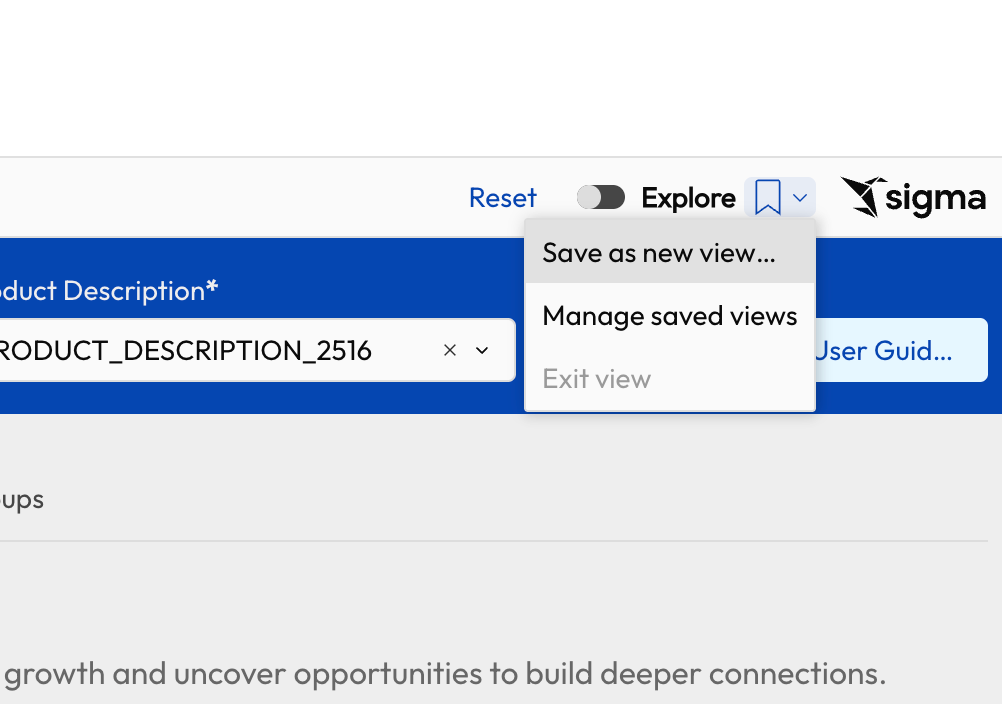
Seek provides users with the ability to save a customized view of an App as a Saved View, so you can return to a specific set of filters and Explore changes instantly — and give everyone on your team the same starting point. Saved Views are managed from the bookmark icon in the App toolbar.
Note: Saved Views are shared across the App variant. Any view you save is currently available to everyone with access to the same App variant, and a default view opens automatically on first load for every user viewing that variant.
Save a New View
Open your App and apply the filters or Explore changes you want to capture.
In the toolbar at the top right of the App, click the dropdown arrow next to the bookmark icon (beside the Explore toggle).
Select Save as new view…
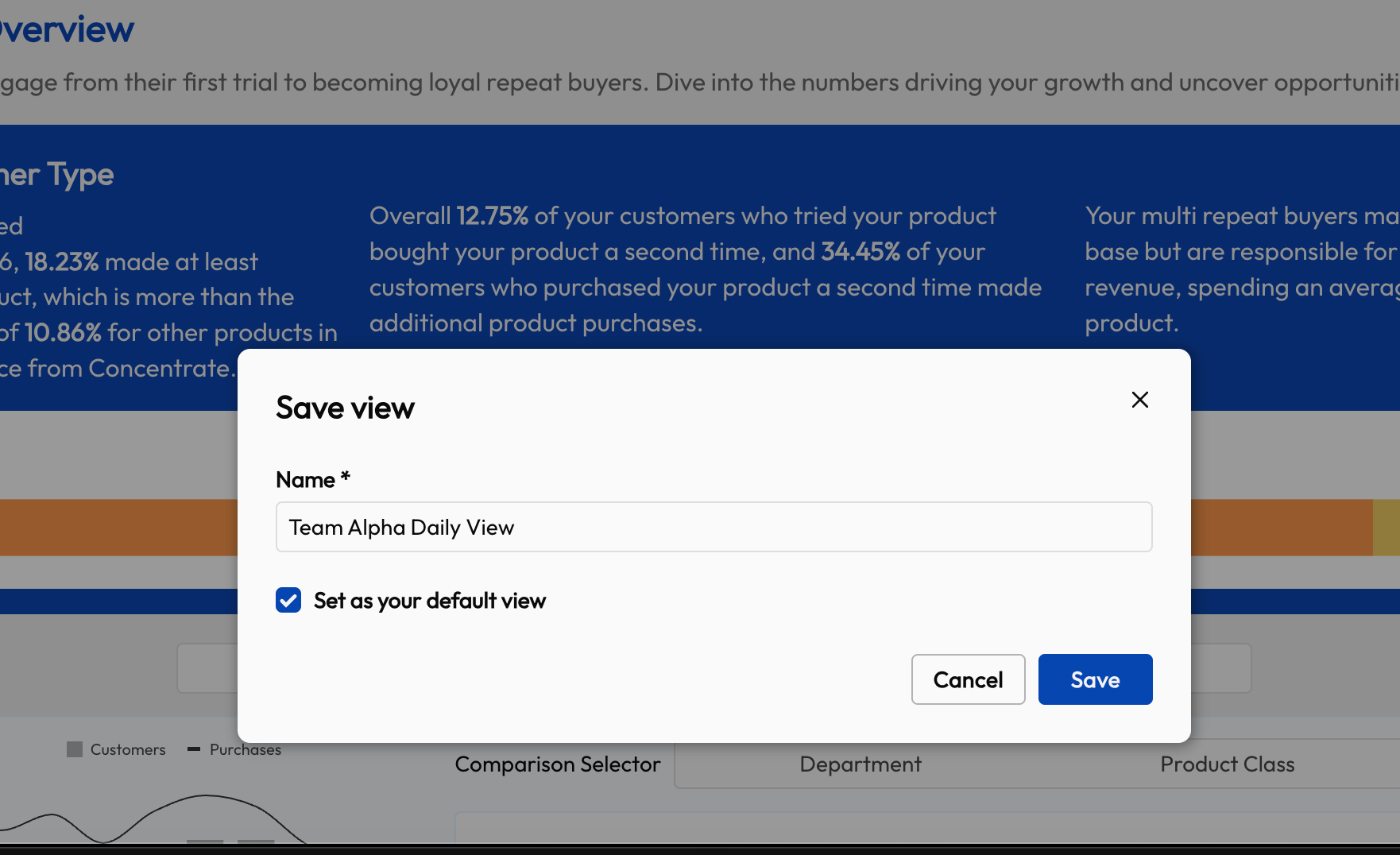
In the Save view dialog, enter a Name for your view.
(Optional) Check Set as your default view to make this the view that opens first for everyone on the variant.
Click Save.
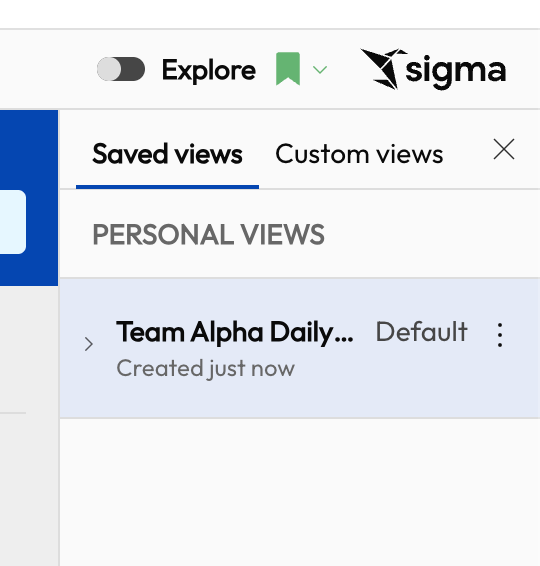
Once a View is saved, the bookmark icon turns green indicating that it’s loaded, and your new view appears in the Saved views panel. If you set it as the default, it will be labeled Default.
Manage Your Saved Views
To review, rename, or change the default among your existing views:
Click the dropdown arrow next to the bookmark icon.
Select Manage saved views to open the Saved views panel.
Find the view you want to update and open its options menu (⋮) to:
Rename the view
Set it as the default (or change the current default)
Remove the view
Switching and Exiting Views
Open the Saved views panel from the bookmark dropdown to switch to any saved view at any time. To return to the App's standard view, open the bookmark dropdown and select Exit view.
Things to Keep in Mind
Views are shared at the variant level. Every view you save — and the default you set — currently applies to all users with access to the same App variant.
The default view opens automatically the first time a user loads the variant.
Views capture your filters and Explore changes on top of the App. If the App is significantly updated, an older view may need to be recreated.
FAQ
Can others delete my saved views?
Can others delete my saved views?
Yes, since there is full collaboration and sharing of all saved views, other users can accidentally delete your view.
Do I need to share a view in any way for my colleagues to see?
Do I need to share a view in any way for my colleagues to see?
Still need help? Share an idea