Home
The five optional widgets, the 3 recent apps and up to 6 recommendations they show, the Customization menu admins use, and what to do if Home is empty.
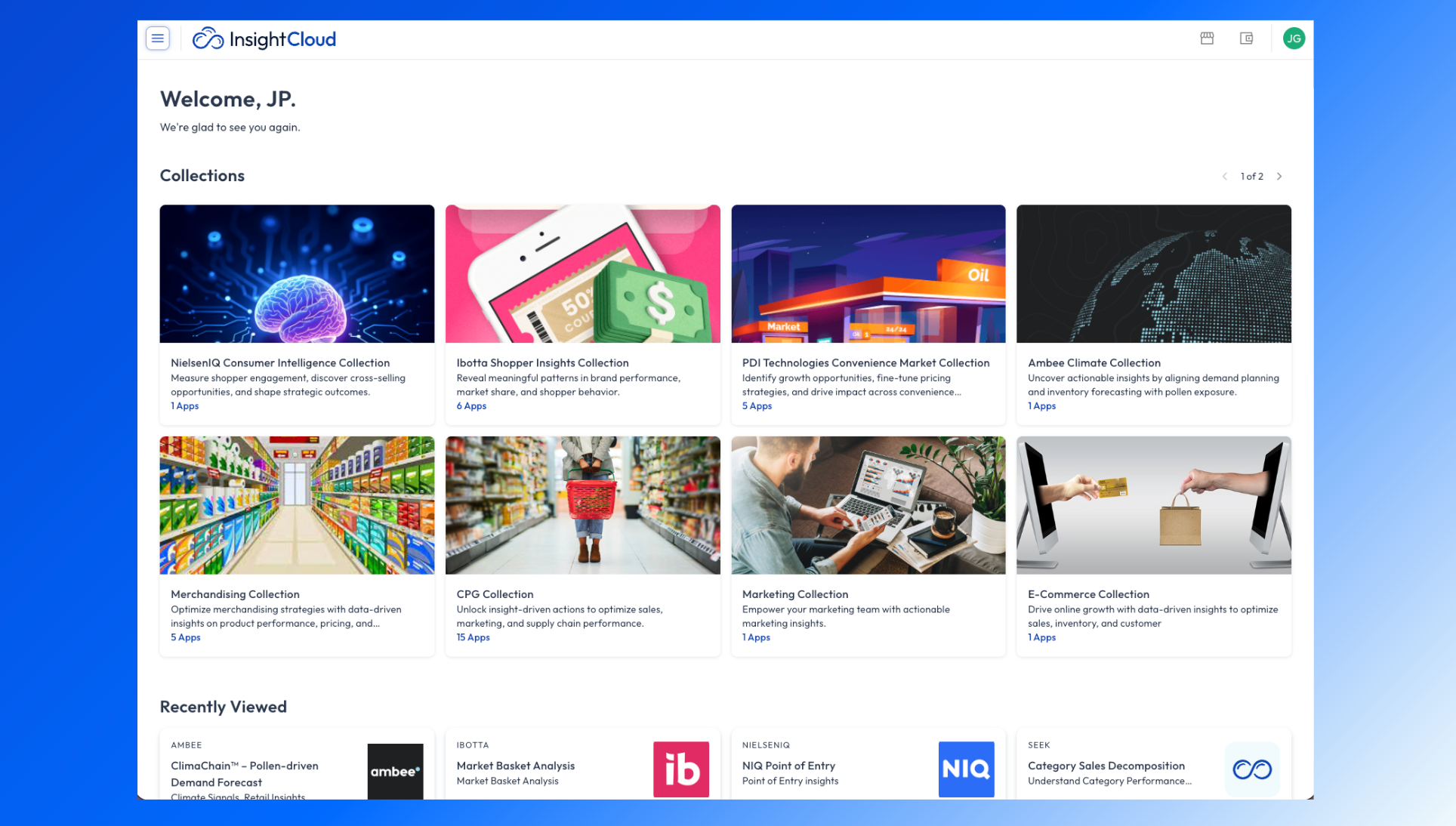
Home is the landing screen in Insight Cloud that gives you quick navigation to the apps you care about or have opened recently. It is configurable: your organization's admins choose which widgets appear on it and in what order.
You may also see Home referred to as the home page, homepage, landing page, or start page. People often ask about it as "where do I start," "why is my home screen empty," or "why does my home screen look different from my coworker's."
Applies to: Insight Cloud, all organizations. Every user has a Home screen.
You'll need: No special role to view Home. Configuring Home today is limited to organization admins.
Last reviewed: 2026-10-21
Where to find Home
Select Home in the left side navigation bar. Home is also the landing page you arrive on after you log in.
What you can do with Home
Open an app you used recently from the recent apps carousel
Jump to a group of related apps from a Collection
Discover apps from the App Store that are recommended for you
Read your organization's welcome message and see upcoming events, when your admins have turned those widgets on
What widgets Home can show
Home is built from optional widgets. Your organization's admins choose which of these appear and in what order. Home shows only the widgets they have turned on, so your Home may not include all of them.
Welcome message and subheading — a heading and subheading your organization sets for everyone on Home.
Events — a scrolling timeline of events, with details for each event.
Collections — grouped sets of apps for quick navigation. Each Collection is a group of apps that your organization's admins have set up by tags.
Recently viewed apps — a carousel of the 3 apps you opened most recently.
Apps you might be interested in — up to 6 apps from the App Store, recommended based on the tags of the apps you already have access to. Seek and the apps' publishers manage those tags.
Home does not offer other widgets at this time.
How Home is configured
Home has one setup per organization, and organization admins configure it. That setup covers which widgets are on and the order they appear in. Seek can also curate Collections on behalf of your organization.
What you see within that setup can still differ from a coworker's Home:
Recently viewed apps shows the apps you opened, so it is different for each person.
Collections shows only the apps you have access to, so people with different app access can see different Collections.
Apps you might be interested in is based on the apps you have access to.
Example
Your organization turns on four widgets: the welcome message, Collections, Recently viewed apps, and Apps you might be interested in. An analyst and a marketing manager in that organization both see those four widgets in the same order. The analyst's Recently viewed apps carousel shows the last 3 apps she opened. The manager's shows his own last 3. If the manager has access to apps the analyst does not, his Collections and recommendations can include those apps and hers will not.
How to configure Home (organization admins)
Organization admins configure Home from Organization Settings. Under Customization, the settings for Home are:
Homepage Widgets — the widgets on Home
Homepage Heading — the heading on Home
Events — the events on Home
Collections — the Collections on Home
These settings apply to your whole organization. They are not per-user settings, and users who are not organization admins do not configure Home.
Homepage Widgets
Homepage Widgets shows all the widgets available to your organization. Organization admins can add widgets to the set Home displays, and can rearrange the order they appear in.
The Collections screen
The Collections screen, titled "Curate and manage your collections.", is where organization admins create and manage the Collections that appear on Home. It has:
Search — search Collections by name, description, or tag
Create New — add a Collection
Filters — filter the list
A table of Collections with these columns: Display Order, Image, Collection Name, Visibility, Tag Count, and App Count. Each row also has a menu at the far right.
Each Collection has a name, a description, a display order, and a set of tags. A Collection needs at least one tag. It does not need a tag from every kind of tag.
The Display Order number sets the order in which Collections are displayed. If two or more Collections share the same Display Order, the screen shows the banner "Duplicate display order detected. Collections with duplicate orders are highlighted below." and highlights those rows.
Collections on Home
Collections on Home are the same Collections you can filter by on the My Apps screen. Organization admins curate them as part of the Home configuration, using Collections under Customization in Organization Settings. Seek can also curate them on behalf of users. Custom Collections are set up by organization admins.
Limits and what Home can't do
Home is not fully personalized. Your organization's setup decides which widgets appear, and you cannot add, remove, or reorder widgets yourself.
Home does not have a larger set of optional widgets than the five listed above at this time.
Home does not show favorites. Favoriting does not exist on Home, and Collections are not favoritable. Apps you favorite are managed from My Apps.
Recently viewed apps on Home shows 3 apps, not more.
Apps you might be interested in shows up to 6 apps. Your organization's admins can leave this widget off Home entirely.
Home vs. My Apps vs. the App Store
Home is a configurable landing page for quick navigation. My Apps lists every app you have access to, with search, filters, grouping and favorites. The App Store is where you browse and subscribe to new apps. See My Apps and App Store Basics.
If Home isn't working
If Home is empty, contact the organization admin who invited you. If there are no widgets configured, they can configure the proper widgets. If say the Collections widget displays, but nothing is showing, they can edit your app access.
If you see an error on Home, contact Seek using Get Support.
Related articles
My Apps — see every app you have access to, and favorite apps
App Store Basics — browse and subscribe to new apps
App Basics — what an app is and how it works
Start Guide — first-day walkthrough of Insight Cloud, including the sidebar
Was this helpful?
Still need help? Share an idea