Teams
The four required permissions, Create Team vs. Bulk Assign, the optional default role, how overlapping teams combine access, and that teams cannot nest.
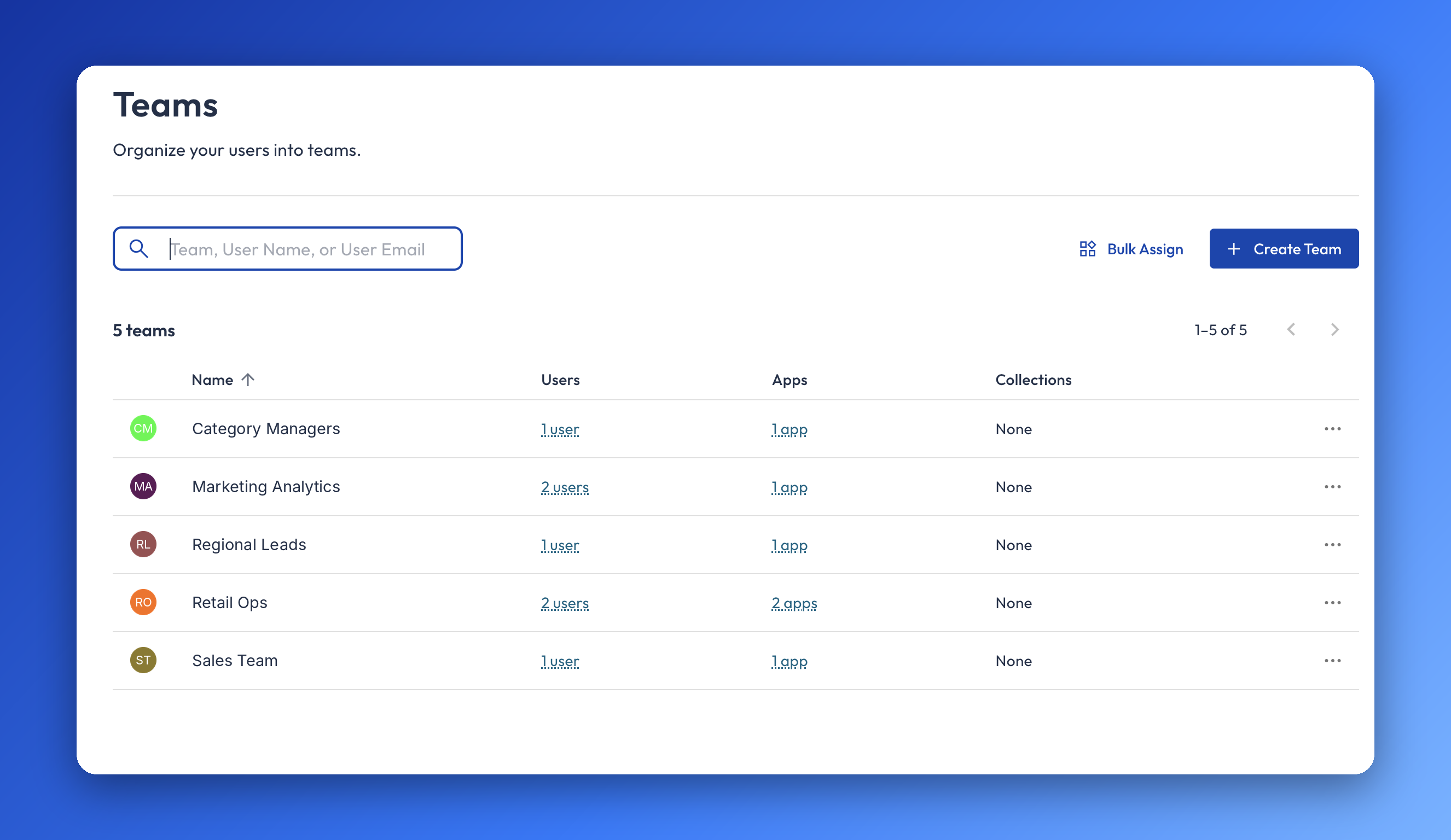
Teams are groups of users in Insight Cloud that share app access and, optionally, a default role. Admins manage them on the Teams page in Organization Settings. Instead of giving apps and roles to people one at a time, an admin sets them once on a team and every member receives them.
You may also see Teams referred to as user groups, groups, or access groups. Admins often ask about them as "how do I give a group access to an app" or "how do I add many users to an app at once."
Applies to: All Insight Cloud organizations
You'll need: All four of these permissions together: Manage Organization, View Team, View User, and View Role. That combination opens the Teams page and allows every action on it. The Admin system role (also called Org Admin) includes all four.
Last reviewed: 2026-11-03
Where to find Teams
Click your organization's logo in the navigation pane to open Organization Settings, then select Teams. Open Organization Settings the same way you open the Users page. See Users.
To edit one team, use the ellipsis (…) in the last column of the Teams table. See How to edit or delete a team.
What you can do with Teams
Create a team and, at creation, set its name, an optional default role, its users, and its apps.
Add users to a team, either on the team's own edit pages or from the Users page (see Other ways to add users to a team).
Give a team access to apps, so every member can open them.
Set one default role on a team, so every member receives that role.
Use Bulk Assign to give one or many apps to one or many teams in one step.
Rename a team, add or change its logo image, change its default role, or delete it.
How to create a team
Open the Teams page (Organization Settings → Teams).
Select Create Team, at the upper right of the Teams page. The New Team dialog opens.
Enter a Team Name, for example Sales, Retail Ops, or Media Team.
Optional: choose a Team Default Role. Every user who joins the team receives this role.
Select the users to add to the team. You can select several.
Select the apps the team should have access to. You can select several.
Create the team.
You'll know it worked when the new team appears in the Teams table.
How to edit or delete a team
Open the Teams page (Organization Settings → Teams).
In the Teams table, select the ellipsis in the last column of the team's row.
Choose the area you want to change:
Teams General — add or change the team's logo image, edit the team name, or select the default role.
Users — add users from your organization to the team. You can select several.
Apps & Reports — add app access to the team. You can select several. The tab also carries the name Reports, which is being phased out.
Delete Team — opens a confirmation dialog. Confirming removes the team from the system completely.
Deleting a team can't be undone. Deleting a team only removes the association between the team's users and apps. The users and apps stay in your organization and remain active.
When you add apps or users to a team, the change takes effect immediately. A success message confirms that the apps or users were added. Users on the team can open newly added apps without refreshing.
How to give apps to several teams at once
Open the Teams page (Organization Settings → Teams).
Select Bulk Assign. A dialog opens.
Select one or more teams.
Select one or more apps to give those teams.
Bulk Assign only assigns apps to teams. It does not assign users to teams.
Other ways to add users to a team
You can also assign teams to a user from the Users page:
When you invite users, choose a team in Add to Teams in the Invite to your organization dialog.
On a user's edit page, assign the user to one or many teams.
See Users.
How Teams work with roles and app access
Teams carry two things: an optional default role and a set of apps. Every member of a team receives both.
A user can belong to several teams. When a user is on more than one team, the user receives the combined role and app access from every team. Access that was assigned to the user individually is added on top of that. Overlapping membership never removes anything.
A user who leaves a team no longer receives the role that came through that team. See Roles and Permissions for how roles add up.
Teams do not change subscriptions. Giving a team access to an app does not subscribe your organization to it, so the app must already be subscribed to your workspace. See Subscriptions.
Limits and what Teams can't do
Teams do not require a default role. A team can have none.
A team can have only one default role.
Teams cannot be nested. A team cannot contain another team.
Teams have no cap on the number of members, and no cap on the number of apps a team can have.
Teams have no cap on how many teams a user can belong to.
Bulk Assign does not assign users to teams. It assigns apps to teams only.
Team app access cannot be overridden on an individual user's page. To remove access that comes from a team, change the team.
Teams do not change subscriptions. Apps must already be subscribed to the workspace before a team can have them.
Deleting a team can't be undone.
Deleting a team does not delete or deactivate its users or its apps. It only removes the association between them, and both stay in the organization as active.
Teams vs. Roles
A role is a named set of permissions that controls what a user can do. A team is a group of users. A team can carry one default role, and every member receives it. A role never adds app access, and app access is given to users or teams. See Roles and Permissions.
Teams vs. the Apps page
The Teams page controls which users get which apps. The Apps page gives admins a workspace-level view of every app connected to the workspace. See Apps.
Teams vs. Subscriptions
Teams control who can open an app. Subscriptions link an app to your workspace and determine billing. See Subscriptions.
If Teams isn't working
If users can't see the apps assigned to their team, check that user's permissions:
Open the Teams page (Organization Settings → Teams).
In the Teams table, select the ellipsis in the last column of the team's row. This opens the team's edit menu.
Select the Users tab, then edit the user.
Open User Settings.
Look at the user's Apps & Reports permissions.
The Apps & Reports permissions show the combination of the user's access from all their teams and any access assigned to them individually. If the app is missing from that combined list, the user has not been given it by any team or individually. Team app access cannot be overridden on this page.
If that doesn't work, or anything else on the Teams page isn't working, use Get Support.
Related articles
Roles and Permissions — what each system role allows, how roles add up, and how to create custom roles
Users — invite users, assign teams and roles, and set app access one user at a time
Apps — review which apps your workspace can access and remove access
Subscriptions — subscribe to apps from the App Store and manage billing
Administration overview — where organization administration lives and what each area covers
App Basics — what an app is and how user and team access add up
Was this helpful?
Still need help? Share an idea