Data Freshness
Where Analysis as of, Data as of, and Next Scheduled Analysis appear, who sets each date, why the dates differ, and the browser time zone.
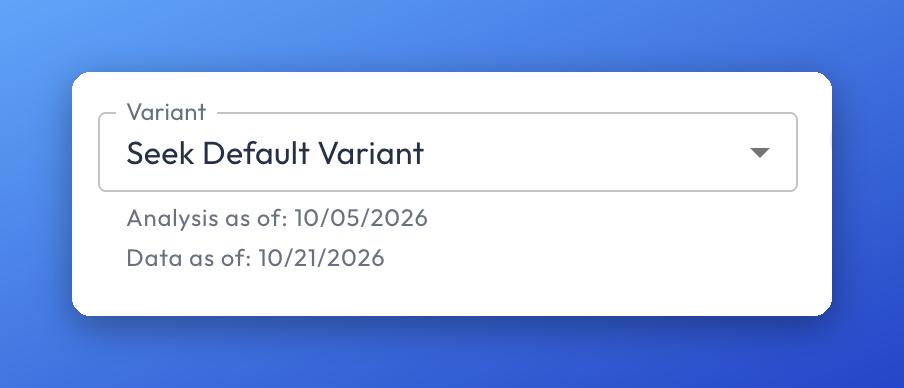
Data Freshness is a set of date fields shown directly under the Variant dropdown in an app. It tells you when the app last ran its analysis, how current the source data is, and when the next analysis is scheduled, so you know how current the output you are looking at really is.
You may also see Data Freshness referred to as the last-updated stamp or the refresh time. Customers often ask about it as "how old is this data" or "when was this refreshed."
Applies to: All users
You'll need: Access to the app. Anyone who can open an app that shows Data Freshness sees it. No special role is required.
Last reviewed: 2026-10-23
Where to find Data Freshness
Open My Apps in Insight Cloud, then click an app tile to launch it. Data Freshness appears directly under the Variant dropdown.
For example, with the Variant dropdown set to Seek Default Variant, Data Freshness shows two lines under the dropdown: Analysis as of: 10/05/2026 and Data as of: 10/21/2026. An additional date is shown for Next Scheduled Analysis and displays when and if your variant is scheduled.
What you can do with Data Freshness
Check when the app last ran its analysis (Analysis as of).
Check how current the source data is (Data as of).
Check when the next analysis is scheduled to run (Next Scheduled Analysis).
Compare Analysis as of and Data as of to see whether newer data is available than the output you are viewing.
Data Freshness fields explained
When Data Freshness fields appear
Data as of and Analysis as of appear when freshness values are configured for an app (not all apps require this). Next Scheduled Analysis appears when a schedule is set on the app. If the variant you are viewing has no Run Cadence, Next Scheduled Analysis does not appear, and Data Freshness shows only Analysis as of and Data as of.
How Data Freshness works
Data Freshness reports a date for each of its three fields. Each field is updated by a different action:
Data as of is controlled only by the app's Publisher. It updates when the Publisher's data is updated in Insight Cloud, on a cadence the Publisher defines.
Analysis as of moves forward each time the app runs its analysis, whether the run is a scheduled run or a manual run.
Next Scheduled Analysis reflects the variant's schedule. Any user who edits the variant's schedule changes this value. See App Variants for how to set a variant's Run Cadence.
Example
An app's Variant dropdown is set to Seek Default Variant. Data Freshness shows Analysis as of: 10/05/2026 and Data as of: 10/21/2026. The Publisher's data was updated on 10/21, but the app last ran its analysis on 10/05. Thus, the dashboard shows the output of the 10/05 analysis, not the newer data and the variant can be rerun to see the latest results.
Limits and what Data Freshness can't do
Data Freshness does not summarize a state such as “current” or “out of date”. It only reports the date set for each of the three fields. It does not
Data Freshness shows dates in the time zone your browser is configured to use.
Data Freshness does not show Next Scheduled Analysis for a variant with no Run Cadence.
Data Freshness does not let you change Data as of. Only the app's Publisher controls it.
Data Freshness vs. the variant schedule
The variant's schedule (its Run Cadence) determines two of the Data Freshness values: Analysis as of and Next Scheduled Analysis. It does not determine Data as of, which only the Publisher controls. See App Variants for how to set a variant's schedule.
If Data Freshness isn't working
You used to see Data Freshness on an app and no longer do. Use Get Support in the Insight Cloud profile menu to tell us. The profile menu opens from your avatar in the bottom-left corner of the sidebar.
Data as of is more recent than Analysis as of, and you need the updated information. You can run the variant manually instead of waiting for the next scheduled run:
Open the app and click Settings in the top right. The App Settings screen opens with a card for each variant.
On the card for the variant you want, click the more options menu (⋮).
Click Run analysis.
These steps come from the App Variants article, which has the full details on running and scheduling variants.
Related articles
App Basics — what an app is, what it includes, and why apps are not real time
App Variants — create variants, set a variant's Run Cadence, and run an analysis manually
Getting Support — how to use Get Support and what to include when you contact us
Was this helpful?
Still need help? Share an idea