Users
The three permissions required to open it, Users list columns, Deactivate User vs. Delete User, and when invite links expire.
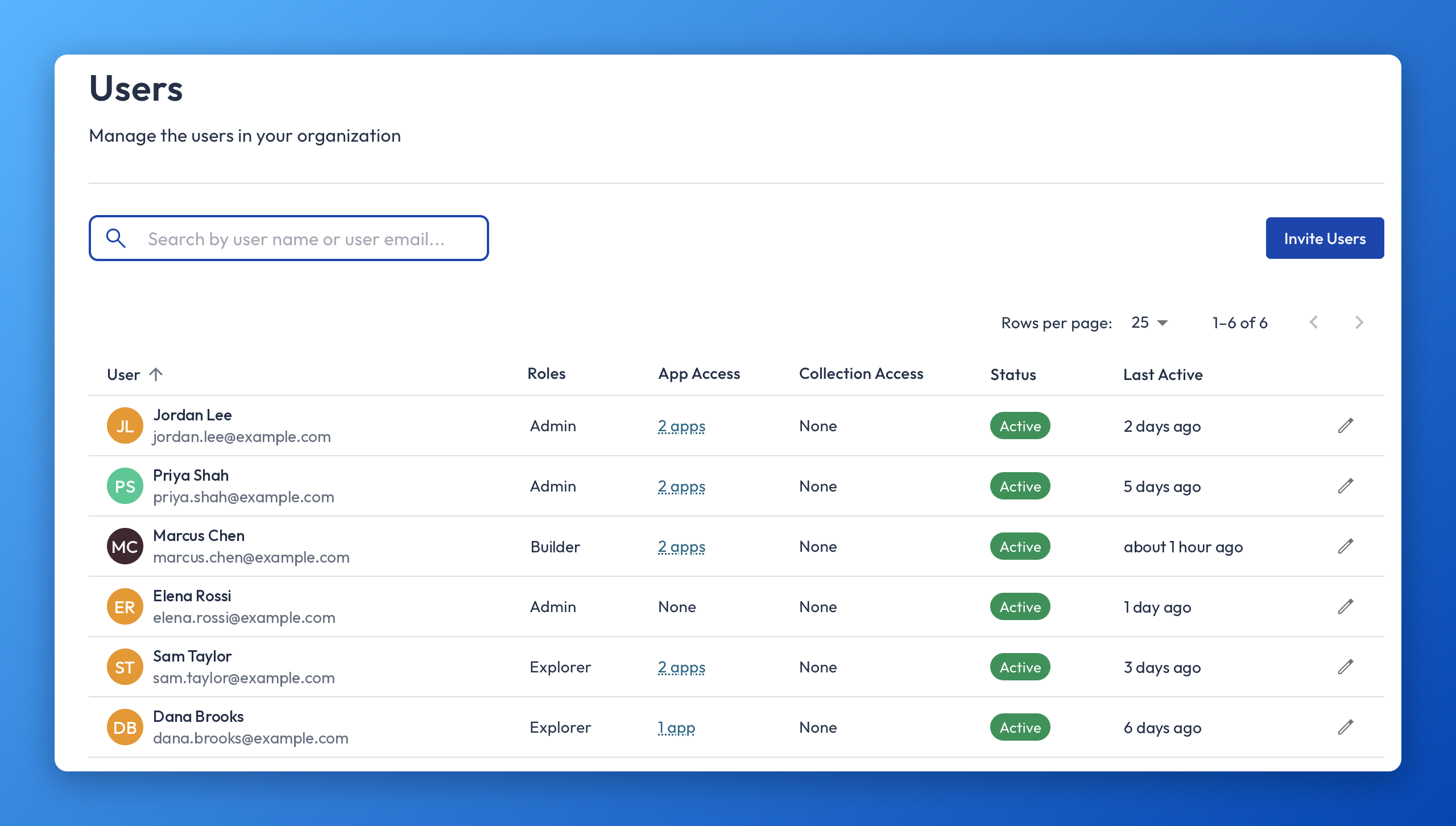
The Users page is the screen in Insight Cloud where admins invite, edit, deactivate, and delete the people who have access to their organization's workspace. It is also where an admin sets each person's roles, team assignments, and app access.
You may also see the Users page referred to as user management, the user list, or the access list. Admins often ask about it as "how do I add a user," "how do I remove someone," or "who has access."
Applies to: Insight Cloud organizations
You'll need: All three of these permissions: Manage Organization, View Team, and View User. Or the Admin system role, also called Org Admin. Holding only one or two of the three permissions is not enough.
Last reviewed: 2026-11-03
Where to find the Users page
Click your organization's logo in the navigation pane to open the Organization Settings screen. Users is one of the pages under Organization Settings; select it once the screen loads. The organization logo is the only way in; there is no button labeled "Organization Settings." If you don't see the organization logo menu or the Users option, you don't have the permissions the Users page requires.
What you can do on the Users page
Invite one or more people to your organization and choose their roles and teams before they log in.
Resend an invitation to anyone who hasn't activated their account yet.
Change a user's roles.
Change a user's team assignments.
Grant or remove a user's access to individual apps your organization has access to.
Deactivate a user, and reactivate them later.
Delete a user permanently.
See each user's role, app access, status, and when they were last active.
What's in the Users list
Each row in the Users list is one user. The columns are:
User — the person's first and last name, accompanied by their email address.
Role — the roles the user holds.
App Access — a count of the apps the user can open. Hover over the count to see which apps.
Status — whether the user is active, invited, or deactivated. An invited user who hasn't accepted yet shows Invite sent.
Last Active — how long ago the user last logged in and did activity in the platform.
Edit (pencil icon) — the final column. The pencil icon opens that user's edit page (see How to edit, deactivate, or delete a user).
How to invite users to your organization
Open the Users page (Organization Settings → Users).
Click Invite Users. The Invite to your organization dialog opens.
In Emails, enter one or more email addresses. Separate multiple addresses with commas.
Optional: in Add to Teams, choose one or more teams. If a team has a default role, invited users receive that role automatically.
In Roles, choose one or more roles. At least one role is required, and the lowest role you can choose is the baseline Viewer role.
Send the invitation.
You'll know it worked when each invited person appears in the Users list with the status Invite sent.
The Users page cannot invite someone without a role. If you leave Roles empty, the invitation can't be sent.
The activation link in the invitation email expires after 2 weeks. After that, the person can no longer activate their account from that link. An admin can generate a new link by resending the invitation (see How to resend an invitation).
How to resend an invitation
The Users page shows a resend button next to the name of every user who was invited but hasn't activated their account. Click it to send the invitation again. Resending generates a new activation link, and the previous link's 2-week expiry no longer matters. There is no limit on how many times you can resend, and no deadline for resending, for as long as the person has not activated their account.
How to edit, deactivate, or delete a user
To change a user, click the pencil icon in the final column of that user's row in the Users list. This puts the user in edit mode and opens a new page for that user's profile. From there, an admin can change the user's roles, team assignments, and app access.
For app access, the edit page lets you grant or remove any app your organization has access to, one user at a time. A role never adds app access, so assigning a role does not give the user any apps. See Roles and Permissions.
To remove someone's access, open that user's edit page (click the pencil icon) and use one of two buttons there:
Deactivate User — the user loses access, and you can reverse it later by reactivating them.
Delete User — the user is removed permanently. Deletion can't be undone.
Limits and what the Users page can't do
The Users page does not support any bulk action except inviting. There is no bulk edit, no bulk activate or deactivate, and no bulk delete; you work on one user at a time. The one exception is inviting: you can enter several email addresses in a single invitation.
The Users page does not let you assign users to teams in bulk. Bulk assignment across teams happens on the Teams page. See Teams.
The Users page requires Manage Organization, View Team, and View User together. Having only one or two of them does not open the page.
Deleting a user from the Users page is permanent. Deactivating is the reversible option.
The Users page cannot invite someone without at least one role.
The activation link in an invitation email expires after 2 weeks, and an expired link can't be used to activate an account. The invitation itself never expires: you can resend it at any time, as often as needed, until the person activates their account.
Assigning a role on the Users page does not grant app access. App access is set separately, on the user's edit page or through a team.
The Users page vs. Personal Settings
The Users page is for admins managing everyone in the organization. Personal Settings, labeled General under User Settings, is where you manage your own profile, such as your picture, name, email, and password. Changes in Personal Settings affect only your own account. See Personal Settings.
If the Users page isn't working
If an invited person says they never received the invitation, ask them to check their junk or spam folder first. Corporate email filters might catch it.
If an invited person can't activate their account because their activation link has expired (links expire after 2 weeks), they should ask an admin to resend the invitation. The admin resends it from the Users page, which generates a new link.
If you can't open the Users page at all, you are probably missing one of the three required permissions. Ask your organization admin to check that you have Manage Organization, View Team, and View User.
Related articles
Roles and Permissions — what each system role allows, how roles add up, and how to create custom roles
Teams — group users, set a team default role, and give app access to many users at once
Apps — review and manage which apps your workspace can access
Administration overview — where organization administration lives and what each area covers
Personal Settings — change your own picture, name, email, or password
Was this helpful?
Still need help? Share an idea