App Variants
Run the same app with different parameters by market, brand, or use case without switching apps.
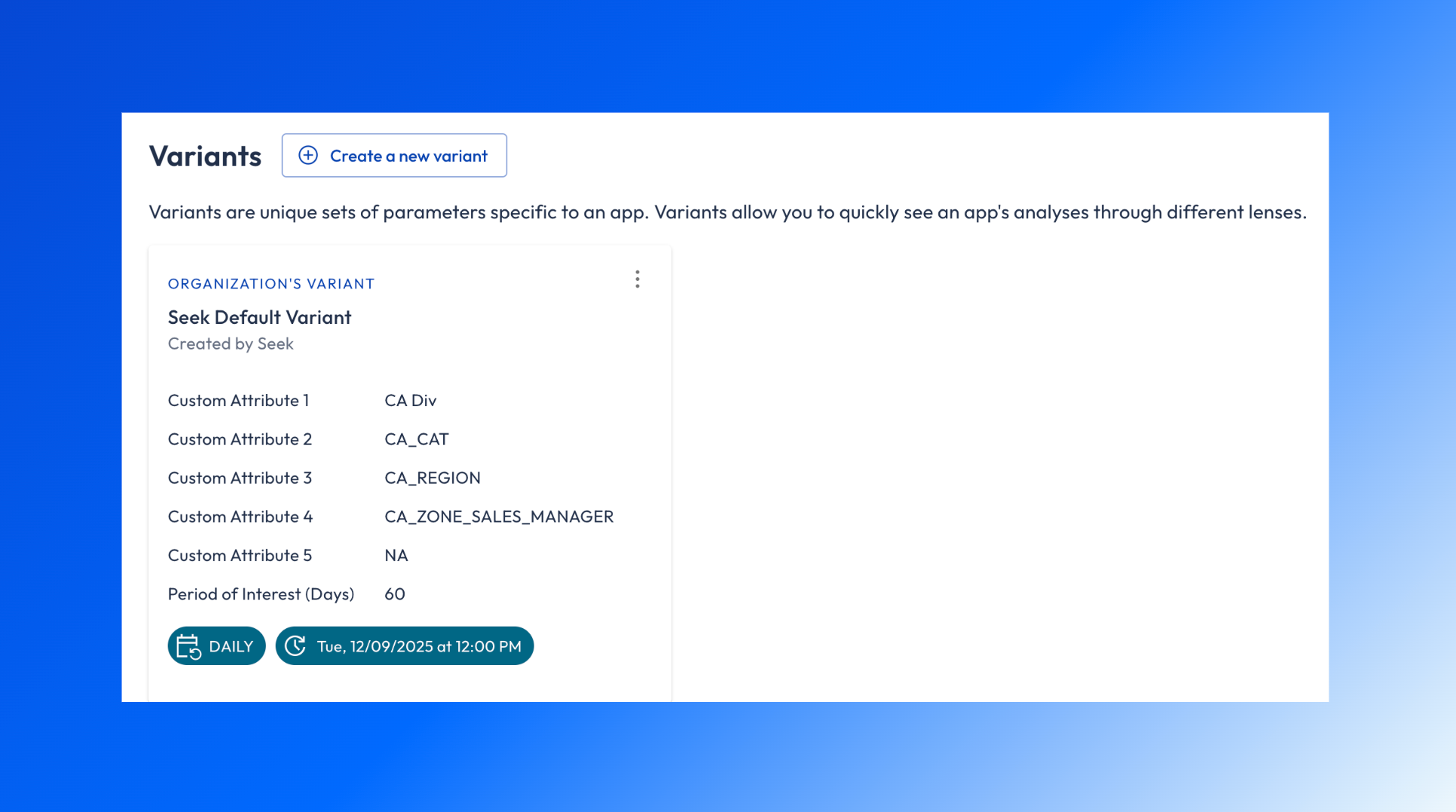
A Variant is a different configuration of the same app — same dashboards, metrics, and data model, but with different parameter values. One app, multiple lenses.
Use Variants when you want to look at the same workflow through different cuts: by market, brand, region, product line, time window, or any other parameter the app publisher exposes.
You can also save variant specific filters / or custom edits to a bookmark accessible by anyone else with access to the app.
How Variants work
Each Variant has four things you control:
A name — descriptive enough to tell Variants apart at a glance.
A set of parameters — values you fill in for fields the publisher made configurable.
A Run Cadence — how often the Variant runs an analysis: Daily, Weekly, Monthly, or Never.
Dashboard Bookmarks - pre-saved filters and controls within the dashboard that can be used to set a default view, per variant.
The publisher decides which parameters you can adjust. You decide the values, the name, and the schedule.
You can also mark one Variant as your preferred Variant — the one that opens by default when you go to the app.
Find a Variant
Open the app and use the Variant dropdown under the title card to switch between Variants.
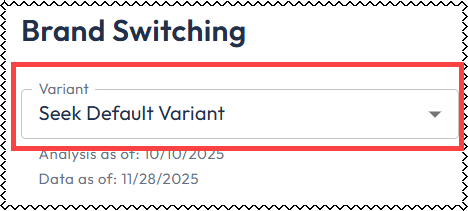
Create a Variant
If no existing Variant has the parameters you want, create one:
Open the app.
Click Settings in the top right. The App Settings screen opens, with a card for each existing Variant.
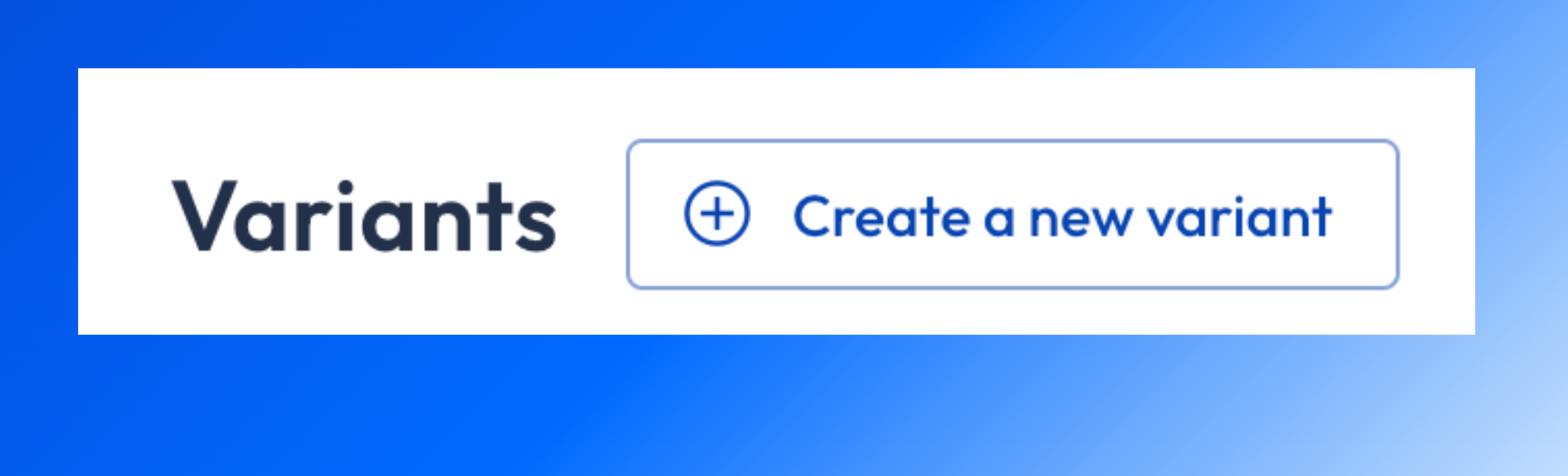
Click Create a new Variant. The New Variant card appears.
Enter a Variant Name and fill in the parameter fields. The name should describe what makes this Variant distinct.
Click Create.
New Variants run automatically on creation so you have data to look at right away.
Manage a Variant
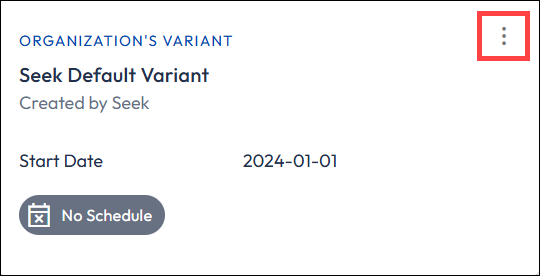
From App Settings, click the more options menu (⋮) on a Variant card to:
Open Variant — Navigate to the app with this Variant selected.
Run analysis — Trigger a run. Becomes Cancel run analysis while a run is in progress.
Edit Variant — Modify parameters and schedule.
Set as preferred — Make this the default Variant that opens when you go to the app.
Delete Variant — Remove the Variant from the app.
Schedule a Variant
When you create or edit a Variant, set its Run Cadence:
Daily, Weekly, Monthly — runs automatically on that schedule.
Never — only runs when you manually trigger it.
Choose Never for Variants you build for one-off questions. Choose a recurring cadence for Variants you check regularly.
Save and Manage Variant Saved Views
See our docs on Saved Views.